Security Document
The most commonly performed security document tasks in daily life — creating, releasing, destroying, changing access targets, folder/compression unit tasks, and responding to errors during tasks are all covered.
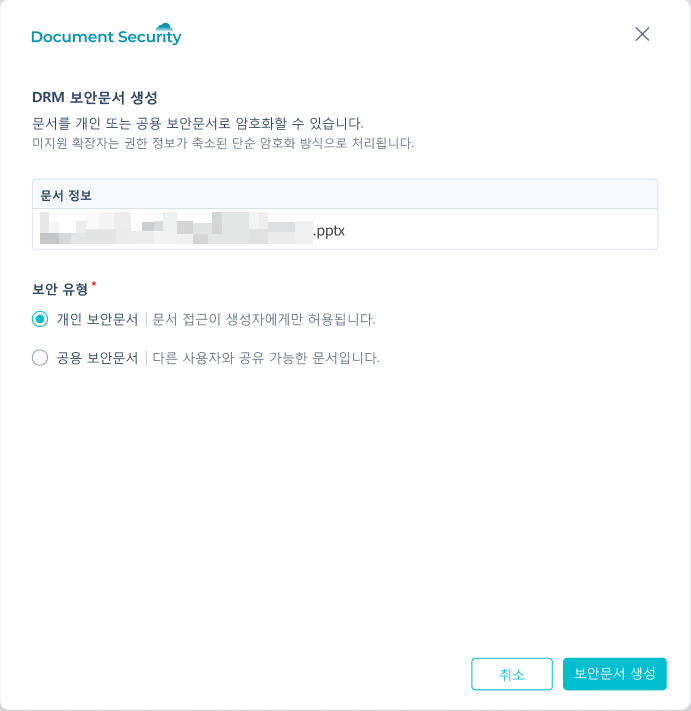
1. Creating Security Documents (Personal)
Creates a security document for personal use.
- Right-click on a regular file in the explorer.
- General Document EncryptionSelect.
- Personal Security DocumentSelect.
- Security Document CreationPress the button.
During the process, you can check the processing status with a progress indicator. Check the results on the completion screen.
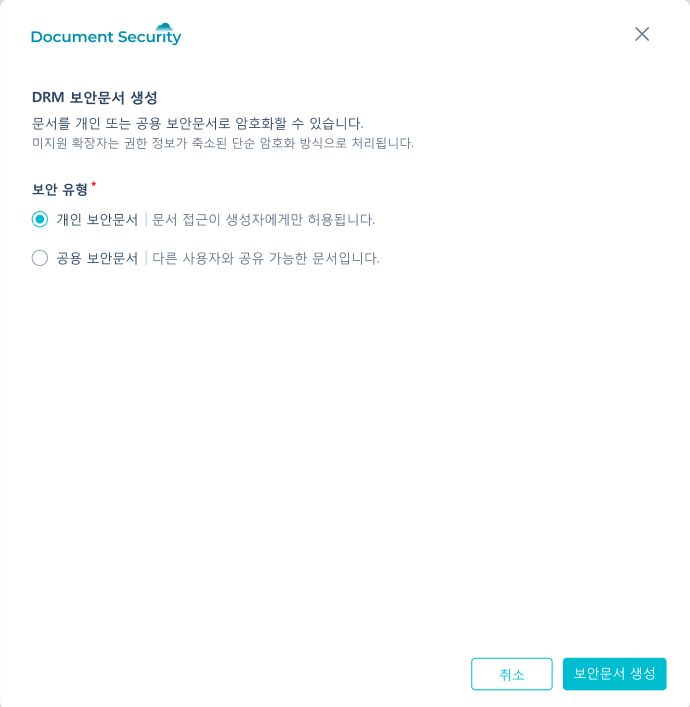
2. Creating Security Documents (Public)
Create a secure document that can be accessed by other users.
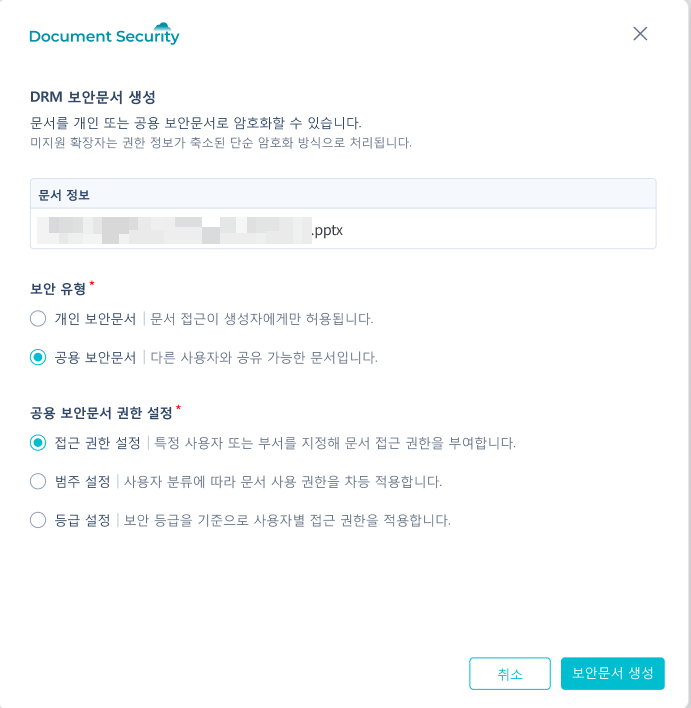
- Right-click on a regular file in Explorer →General Document EncryptionSelect.
- Public Security DocumentSelect.
- The shared permission settings area appears on the screen.
- By default, access permission settings are selected, and additional settings are made by choosing options that meet the requirements.
- The shared permission settings area appears on the screen.
- Security Document CreationPress the button.
| Security Document Generation Single File | Security Document Generation Multiple Files | When selecting a shared security document |
|---|---|---|
 |  |  |
3. Creating Security Documents by Category and Level
If company policy requires specifying categories or grades in documents, an additional category/grade section is set up when creating public security documents.
| Category Settings | Grade Settings |
|---|---|
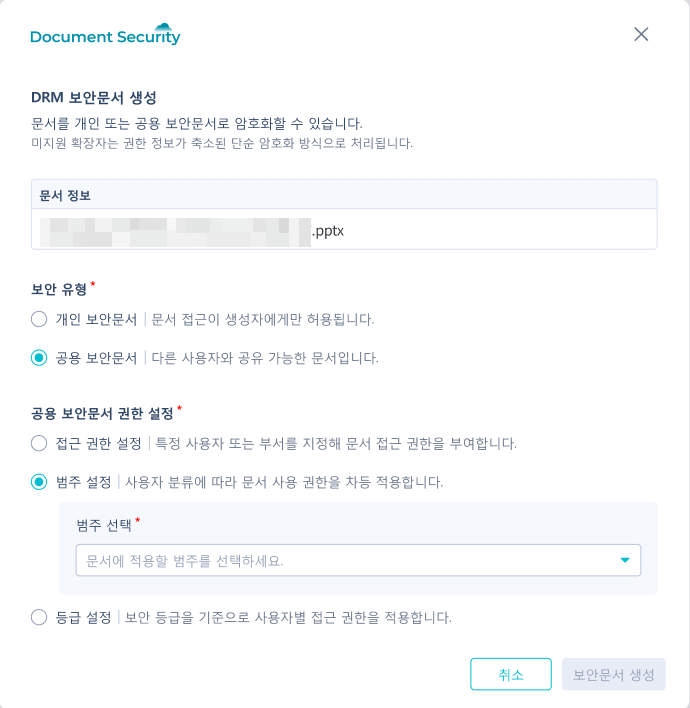 | 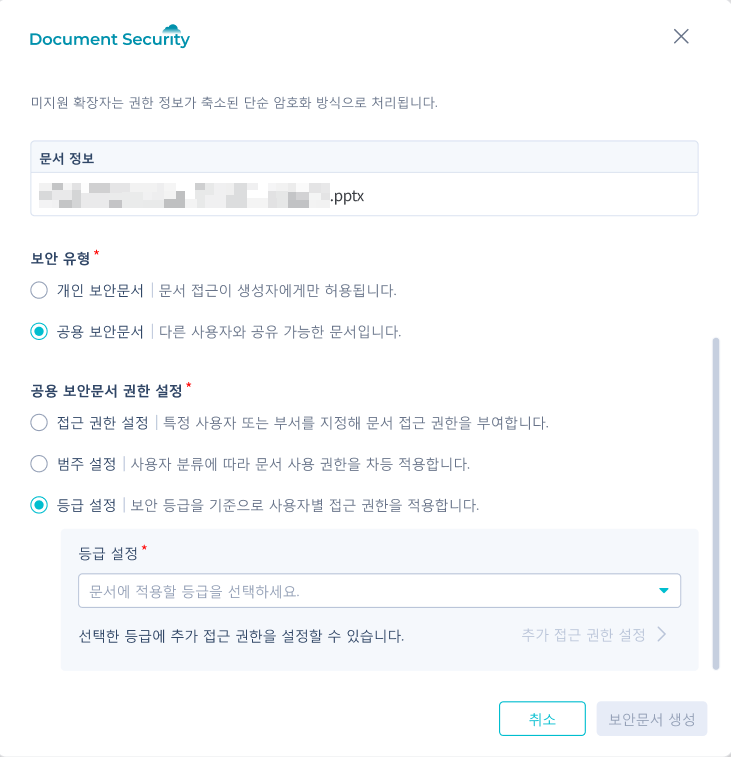 |
- On the shared security document screenCategory SettingsorGrade SettingsSelect.
- When setting categories:
- The subpanel appears and select a category from the dropdown. Until you finish your selection.Security Document CreationThe button remains in a disabled state.
- When setting the grade:
- When you select a gradeAdditional Access Permission SettingsThe area will be activated. Additional access permissions will be specified if necessary.
- When you finish the selectionSecurity Document CreationThe button will be activated. Press the button to proceed.
4. Release Security Document
Decrypting the security document into a regular file.
- Right-click on the security document selected in the explorer.
- Decryption of Security DocumentSelect.
- When the confirmation dialog appears, check the content and proceed.
- When the progress indicator is complete, the results screen will be displayed.
Documents in DSD format can also be released using the same menu, and the results can be checked on the release completion screen.
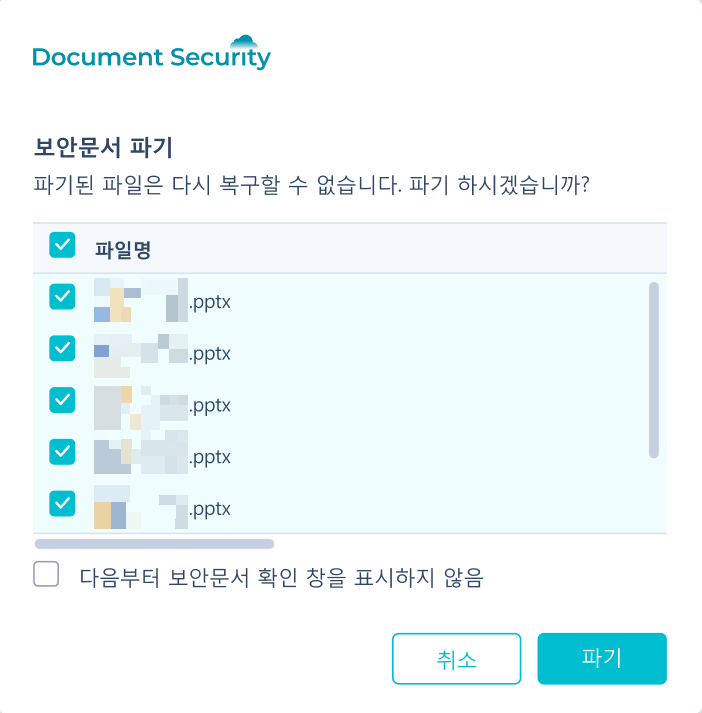
5. Destroying Security Documents
Delete the security document in an unrecoverable state.
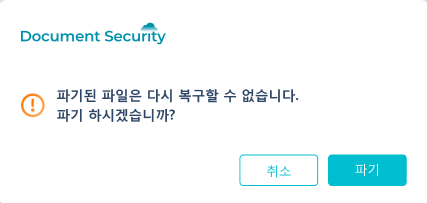
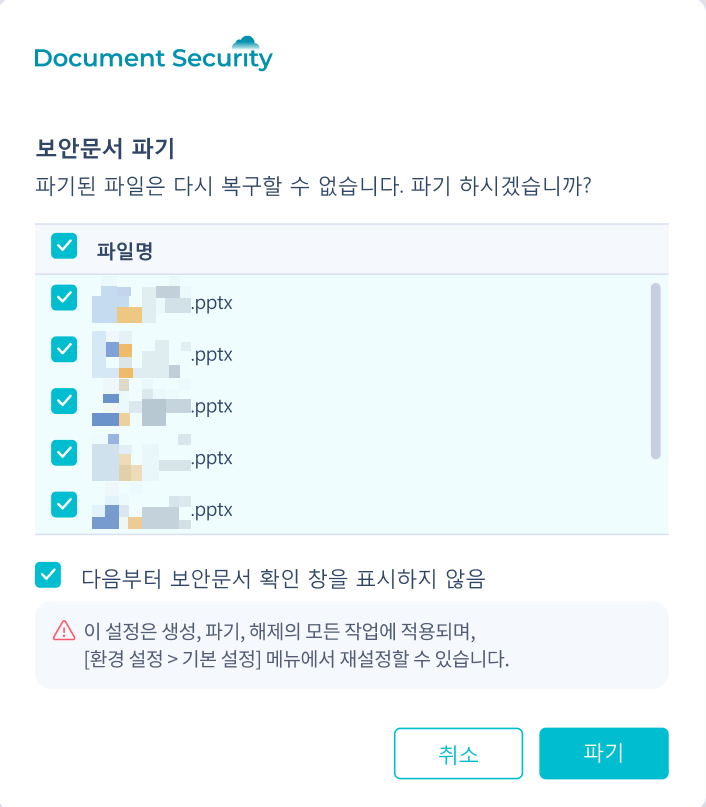
Caution— The deletion operation cannot be recovered even from the recycle bin. An additional confirmation message will be displayed to prevent accidental presses.
| Destruction of Security Documents | Destruction Notification | No Confirmation Dialog (Option) |
|---|---|---|
 |  |  |
- Right-click on the security document selected in the explorer.
- Security Document DisposalSelect.
- Additional Confirmation MessageIt will be displayed. Please confirm again if this is the document you really want to delete.
- When proceeding, the deletion progress will be displayed, and it will end with the completion screen.
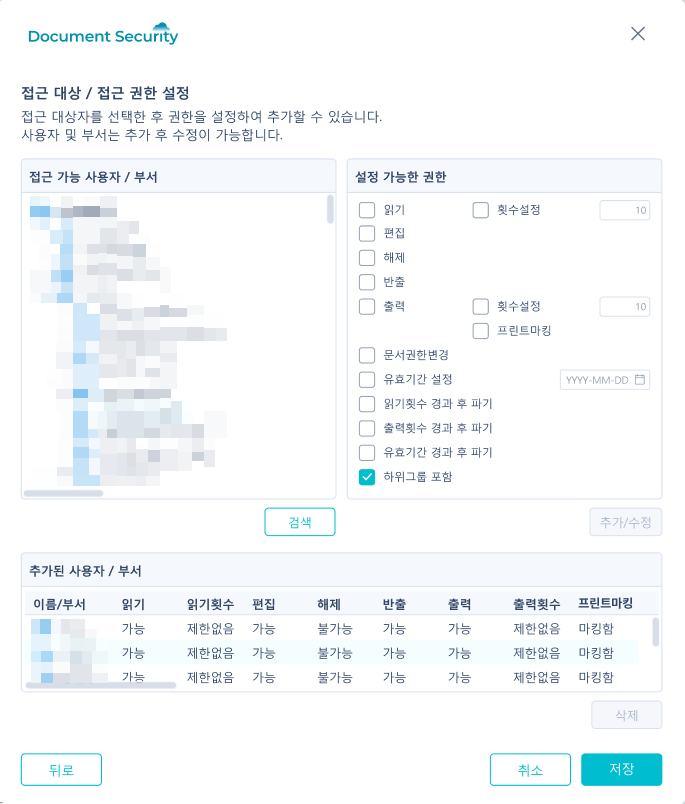
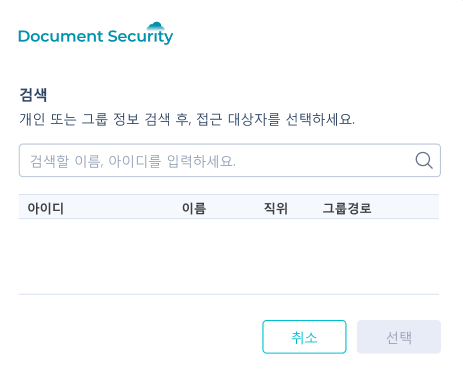
6. Change Access Target (Organization Chart)
Select and change the access target of the existing security document from the organizational chart tree.
| Organization Chart Tree | Search Button |
|---|---|
 |  |
- Right-click on the security document selected in the explorer.
- Change Access TargetSelect.
- Expand the organization tree to add companies, departments, groups, and individuals.
- Click the apply button.
7. Change Access Target (Search)
In environments where the organization is large or the company policy has enabled search mode, use search instead of the organizational chart tree to add access targets.
| Search Options Based |
|---|
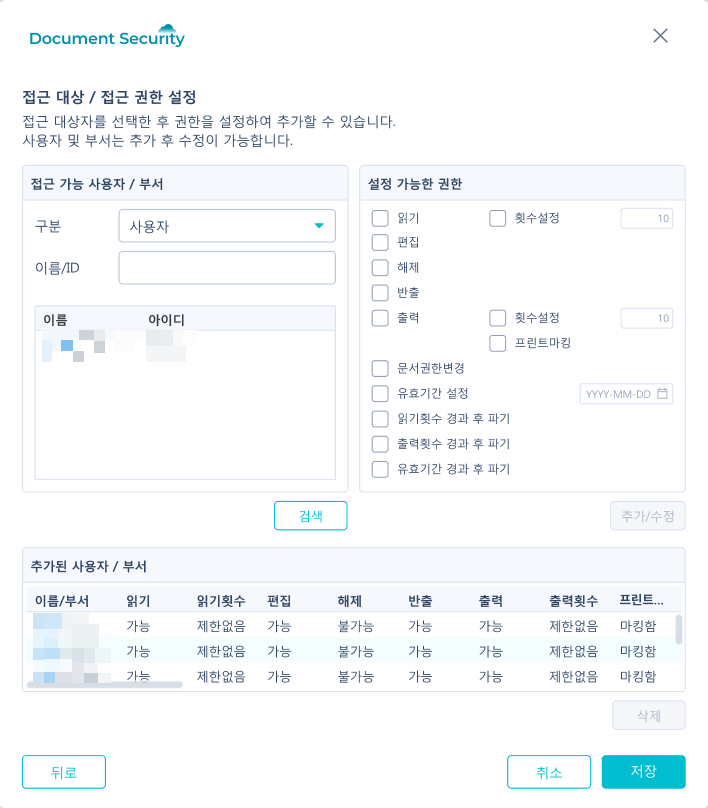 |
- Right-click on the security document in the explorer →Change Access TargetSelect.
- You can search by entering the names of people or groups in the search mode screen.
- Select the target from the search results and add it.
- Click the apply button.
The activation status of the search mode varies by operating environment.
8. Assigning Access Permissions and Designating Grades After Rating
After selecting the grade security document creation option → proceed with additional settings on what permissions to grant to the access target (reading, editing, output, etc.).
| Display of specified grade information after grade assignment |
|---|
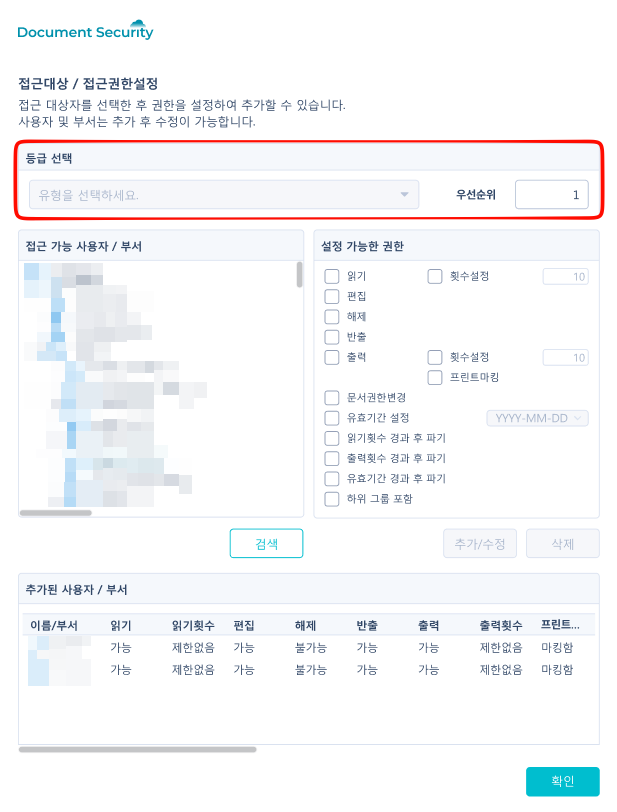 |
- Change Target Access or Security Document Creation ScreenGrade SettingsOpens the area.
- Select the appropriate grade from the list of grades established according to company policy.
- After selecting the gradeAdditional Access Permission SettingsThe area will be activated. If necessary, permissions can be specified in detail for each user.
- Applying changes.
9. Folder Unit Operations
When you need to process multiple files at once, use the folder-level menu.
Right-clicking on the folder will display the following menu.
| Menu | result |
|---|---|
| File Encryption in Folder | Convert regular files in a folder to secure documents at once. |
| Simple Encryption of Files in a Folder | Applies simple encryption without authorization. |
| Decryption of files in the folder | Revert the secure documents in the folder to regular files. |
| File Access Target/Permission Settings in Folder | Change the access targets of the security documents in the folder in bulk. |
Folder-level tasks also display progress just like single file tasks, and after completion, you can check the processing results through the results screen.